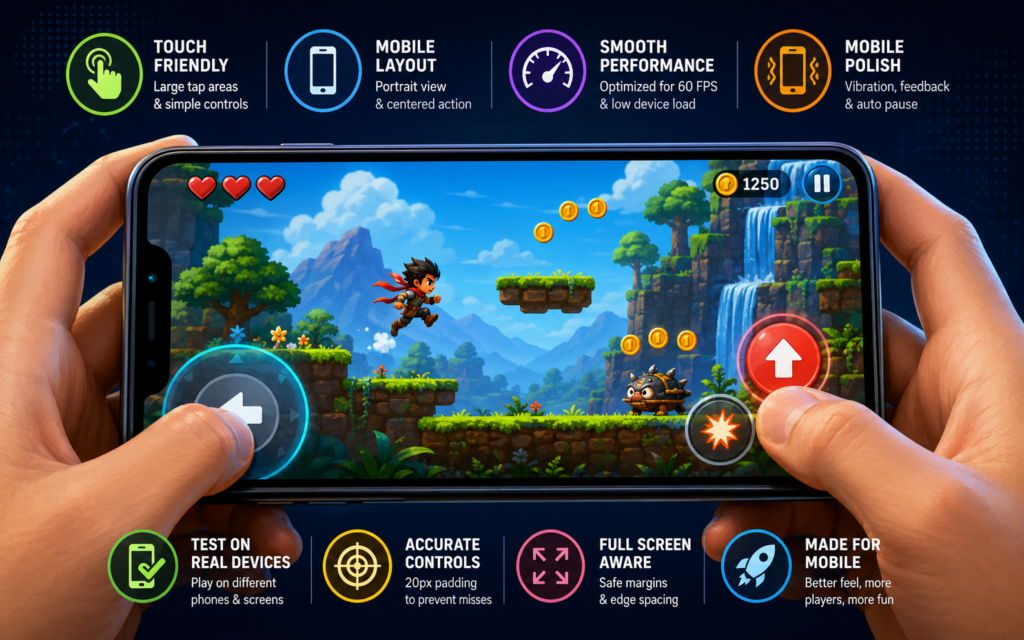
How to Make Your First AI Game Play Smoothly on Mobile
Your first game runs fine on a computer, but on a phone it stutters, controls feel delayed, taps miss, or the screen cuts off parts of the action. Players touch the screen expecting an instant response, but the game lags or behaves strangely.
This happens with simple games made from descriptions because mobile devices have smaller screens, use touch input instead of a keyboard or mouse, and have different performance limits. The good news is you can fix most mobile problems with clear instructions in your game description. Small changes make the game feel natural and responsive on phones, so friends and family actually enjoy playing it without complaints.
Why Mobile Play Feels Off in Simple Games
Mobile devices are different from computers in three main ways that affect game feel. First, touch screens have no physical buttons, so every action relies on finger taps or swipes. Second, screens are smaller and taller, so the layout that looks perfect on a wide monitor gets squeezed or cut off on a phone. Third, phones have less raw power than most computers, so even simple games can slow down if they have too many moving objects or heavy effects at once.
Common problems include taps that register late or not at all, buttons or targets that are too small to touch accurately, views that zoom or scroll awkwardly, games that slow or stutter during busy moments, and important parts that get hidden off screen. These issues frustrate players fast. The fix starts with designing for touch and small screens from the beginning.
Design Controls Specifically for Touch
Keyboard or mouse controls work on computers but feel wrong on phones. Touch needs larger, forgiving targets and simple gestures.
The most important touch friendly changes to add to your description are making all interactive areas at least 60 by 60 pixels so fingers can hit them easily. Use simple taps instead of complex drags, where the player taps the left side to move left, the right side to move right, and the center to jump or shoot. Add invisible padding by increasing the hit area around buttons and objects by 20 pixels so near misses still count. Prevent accidental touches by ignoring very quick taps under 0.1 seconds to avoid misfires from the pocket or palm.
Test on your phone and ask yourself if you can play without looking closely. If taps feel reliable and natural, controls are mobile ready.
Adjust Layout and View for Small Screens
A game designed for wide screens often hides edges or squeezes content on tall phones. Players tilt their heads or zoom in frustration.
Fix the view and layout by using a portrait friendly camera that follows the player vertically, keeping the head and feet always visible even on tall screens. Scale UI elements at least 1.5 times bigger than on desktop for easy reading on small displays. Center the main gameplay area in the middle 80 percent of the screen so edges aren’t cut off. Leave 10 percent space around edges so fingers don’t block the view.
Open your game on your phone in both portrait and landscape. Does everything stay visible and readable? If yes, the layout fits mobile.
Optimize Performance So the Game Runs Smoothly
Phones can slow down when too many things move at once or effects are too heavy. Stutters break the fun instantly.
Reduce load with practical rules in your description. Limit active objects to no more than 20 moving items on screen at any time and recycle or remove objects that go off screen. Simplify effects by using lightweight particles of 5 to 10 sparks maximum per event instead of heavy explosions. Keep background scrolling at half speed and use simple colors and shapes instead of detailed textures. Aim for a steady 60 frames per second and reduce moving parts if it drops below 50.
Test on an older phone or in low power mode. If it runs without noticeable slowdown during busy parts, performance is good.
Add Mobile Specific Polish for Better Feel
Small touches make mobile play feel thoughtful and enjoyable. Add short vibration feedback on jump landing, collect, or hit lasting 0.1 to 0.2 seconds. Lock the game to portrait mode so it doesn’t flip when tilting. Add a brief ripple effect or glow under the finger when tapping important areas. Set the game to auto pause when the app switches and resume instantly on return.
These make the game feel made for phones, not just adapted. Players notice the care.
Test Thoroughly on Real Phones
Computer preview hides mobile issues. Real device testing is essential.
Play full sessions on your phone in portrait mode first. Try on a friend’s older or cheaper phone to catch performance problems. Count how many intended taps miss. Check in different lighting to see if brightness stays readable outdoors.
On platforms like Astrocade, you can regenerate quickly after edits, so test mobile versions often. Aim for no complaints after 5 to 10 minutes of play.
See It Done Right
A good example of smooth mobile play is Mario Pixel Painter, where taps feel accurate, the view stays centered, and performance never slows down even as more elements appear on screen. Notice how everything is sized for fingers and how the experience stays smooth throughout, and use the same approach when optimizing your own game for mobile.
Final Tips to Make Mobile Your Priority
When writing your game description, always add a mobile section. Describe it as: optimize fully for touch screens with large tap areas, portrait view, instant response, lightweight effects, and vibration on key actions.
Generate, test on your phone, and repeat. Start with controls and layout since they matter most. Your first game doesn’t need to be perfect on every device, but making it smooth on mobile opens it to far more players. Friends play on the bus, at lunch, while waiting, and a smooth feel keeps them there.
Whether you are just starting out or improving an existing build, Astrocade lets you edit descriptions, regenerate, and test on mobile in seconds. Open your game description now, add one mobile fix, generate, and feel the difference.